Restart Windows 10 in Safe Mode
1. Press [Shift]
If you can access any of the Power options described above, you can also restart in Safe Mode by holding down the [Shift] key on the keyboard when you click Restart.
2. Using the Start menu
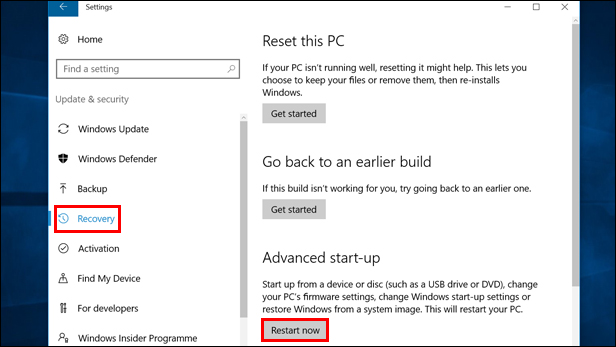
If you can open the Start menu, you can restart in Safe Mode by selecting Start > Settings cog > Update & Security > Recovery > Advanced start-up > Restart now.
3. But wait, there’s more…
With both options 1 and 2 above, there are still some additional steps to complete before getting to Safe Mode.
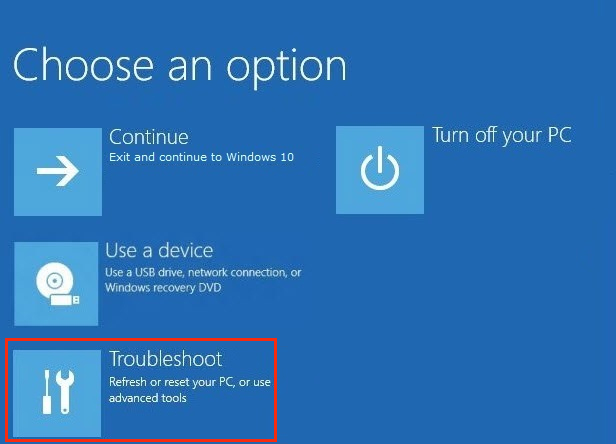
When Windows 10 restarts, you’ll see a series of blue screens, starting with Choose an option.
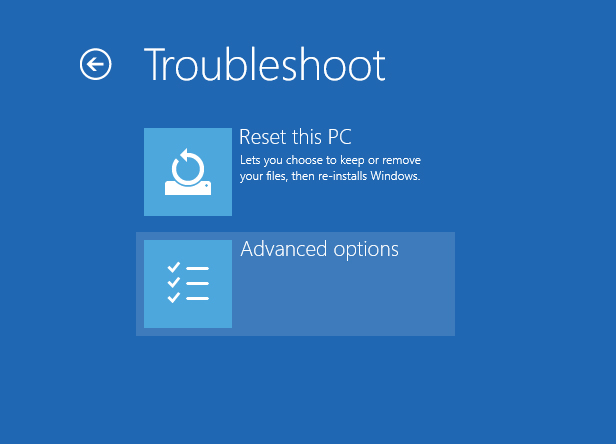
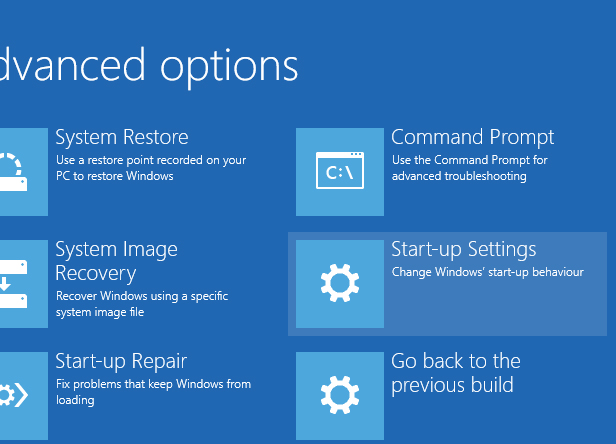
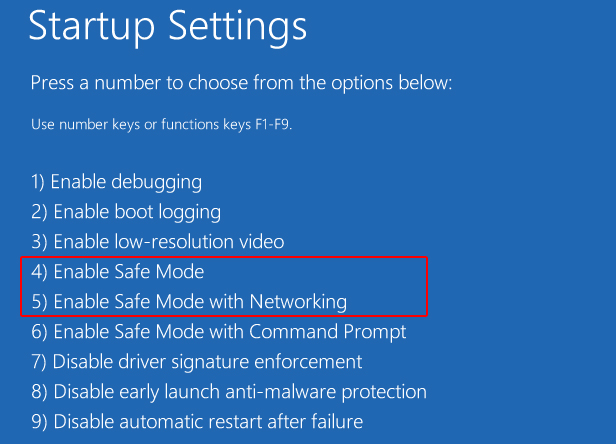
From here you need to select Troubleshoot > Advanced options > Start-up Settings > Restartand then press either the [4] or [5] key on your keyboard to restart in Safe Mode or Safe Mode with Networking (if you want internet access).
4. By pressing [F8]
Yes, we know we said this no longer works in Windows 10, but you can reactivate it. Here’s how.
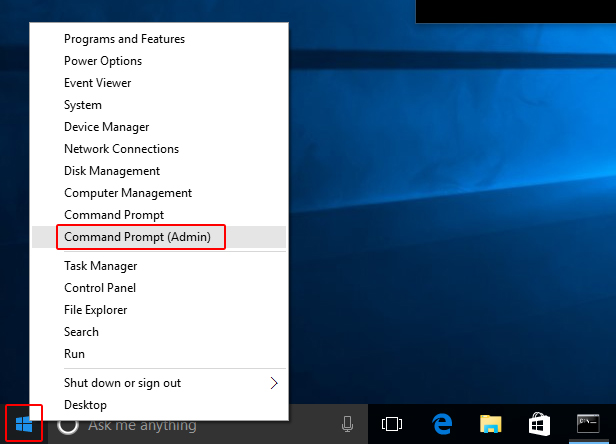
Right-click the Start button and select Command Prompt (Admin) from the menu that appears (this isn’t the usual Start menu).
Click the Yes button if prompted to allow the app to make changes to your PC.
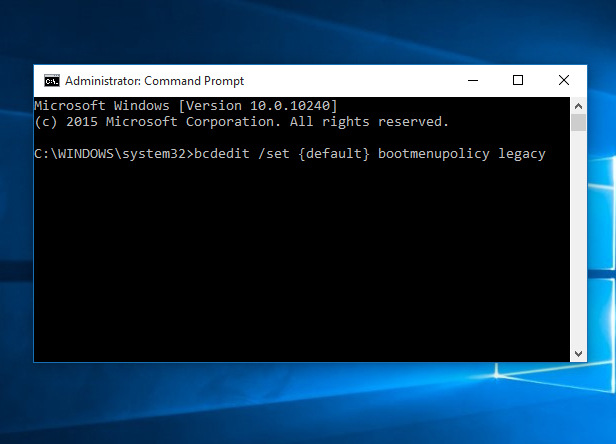
Type — or copy and paste — the following into the Command Prompt window and press the [Return] key:
bcdedit /set {default} bootmenupolicy legacy
You should now be able to enter Safe Mode when restarting Windows 10 by pressing [F8].
 Computer Repair Pros INC